Document flow with the “Wine Bureau” Import and Distribution Company on the EDI Network 2.0 platform: “International deliveries”. Instructions for Supplier
Contents:
Introduction
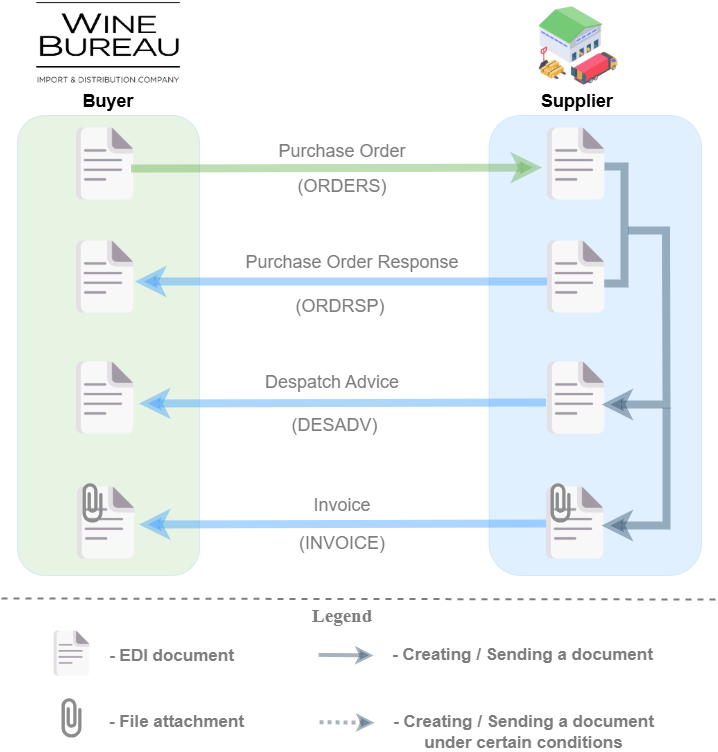
This instruction describes the document flow procedure with “Wine Bureau” Import and Distribution Company on the EDI Network 2.0 platform according to the scheme provided for international deliveries. Document flow is organized by the following documents:
General document flow scheme:
1 Login to the platform
You can use any browser to work with the WEB service (Google Chrome latest version is recommended). To start work with the EDI Network platform, you need to Authorize : follow the link https://edo-v2.edin.ua/auth, enter your user login and password, click “Sign In” button, as shown on the image below:

Hint
After entering to the EDI Network platform, you can change your personal data in the “User profile”.
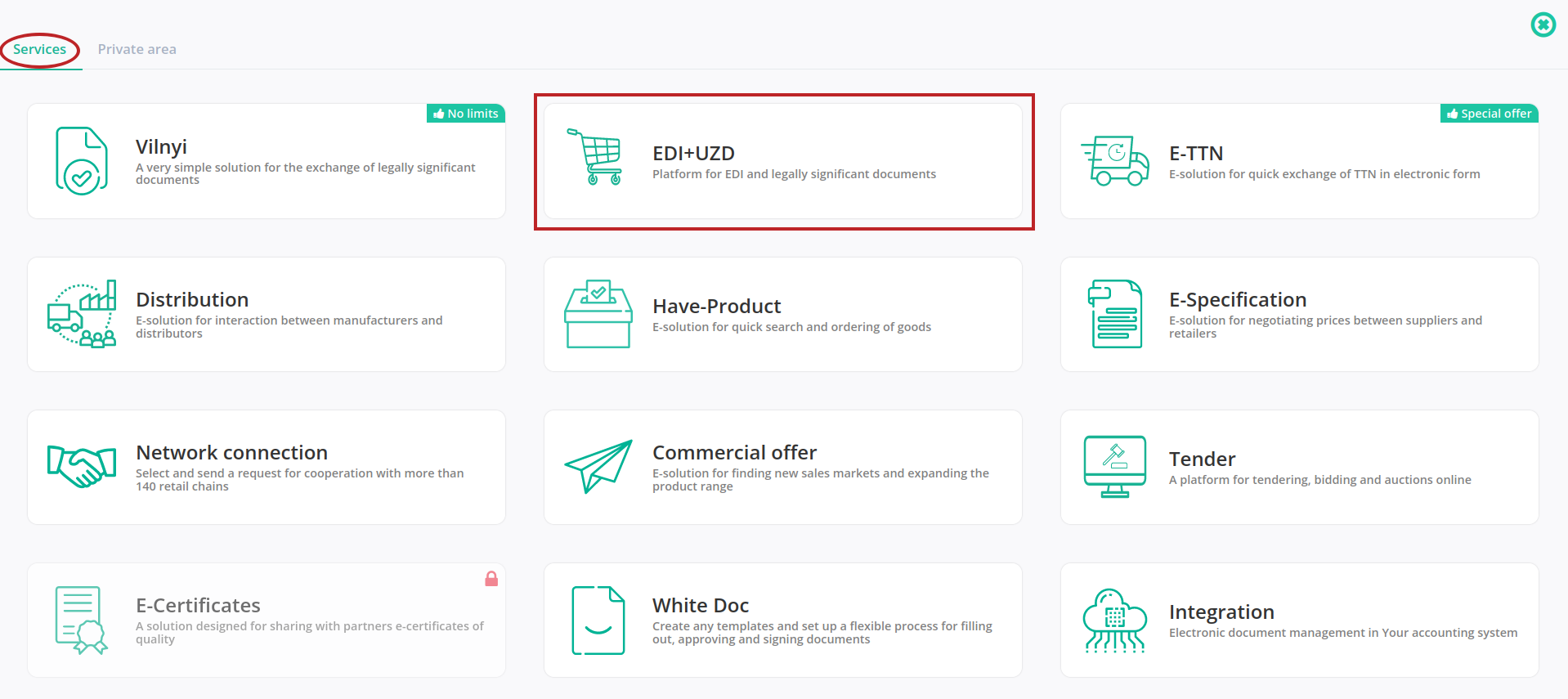
After successful authorization, the main menu will be opened. Select the “EDI Network” service in the “Services” EDIN tab:
2 Formation of “Purchase Order Response” (ORDRSP) based on incoming “Purchase Order” (ORDER)
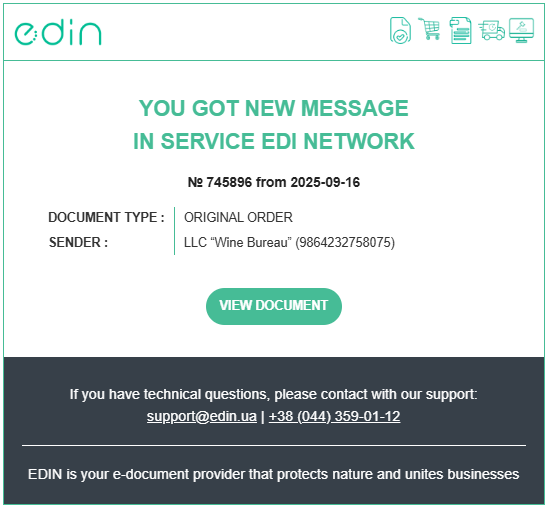
Wine Bureau is the initiator of the document flow and sends the “Purchase Order” (ORDER). Supplier receives an email notification about that:
To form a “Purchase Order Response” (ORDRSP), open the incoming “Purchase Order” (ORDER). Use one of the following ways to do that:
Way #1 - opening “Purchase Order” from the incoming email notification. Click on the “View document” button in the email (see the screen above). You should be authorized to watch the ORDER.
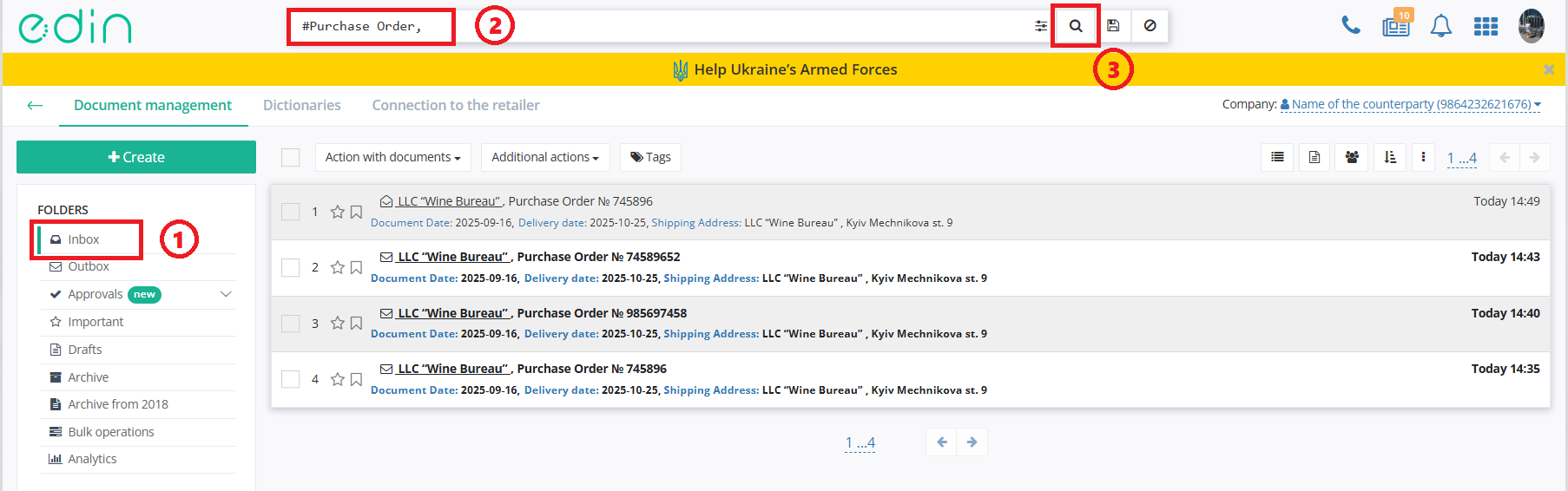
Way #2 - opening “Purchase Order” on the web platform. Choose “Purchase Order” (ORDER) in the “Inbox” folder (use search for convenience):
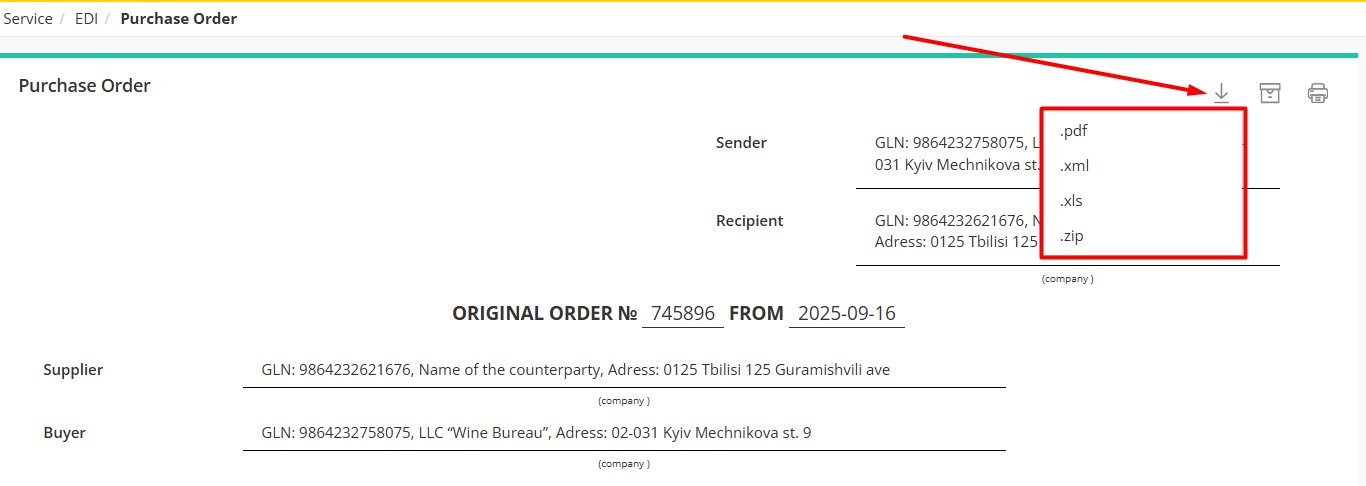
“Purchase Order” (ORDER) form will be opened after using onе of the ways above. If you need to download the “Purchase Order Response”, click “Download” button as it is shown on the screen below. And choose one of the file types in the dropdown. The Order file of the chosen type will be downloaded to your computer.
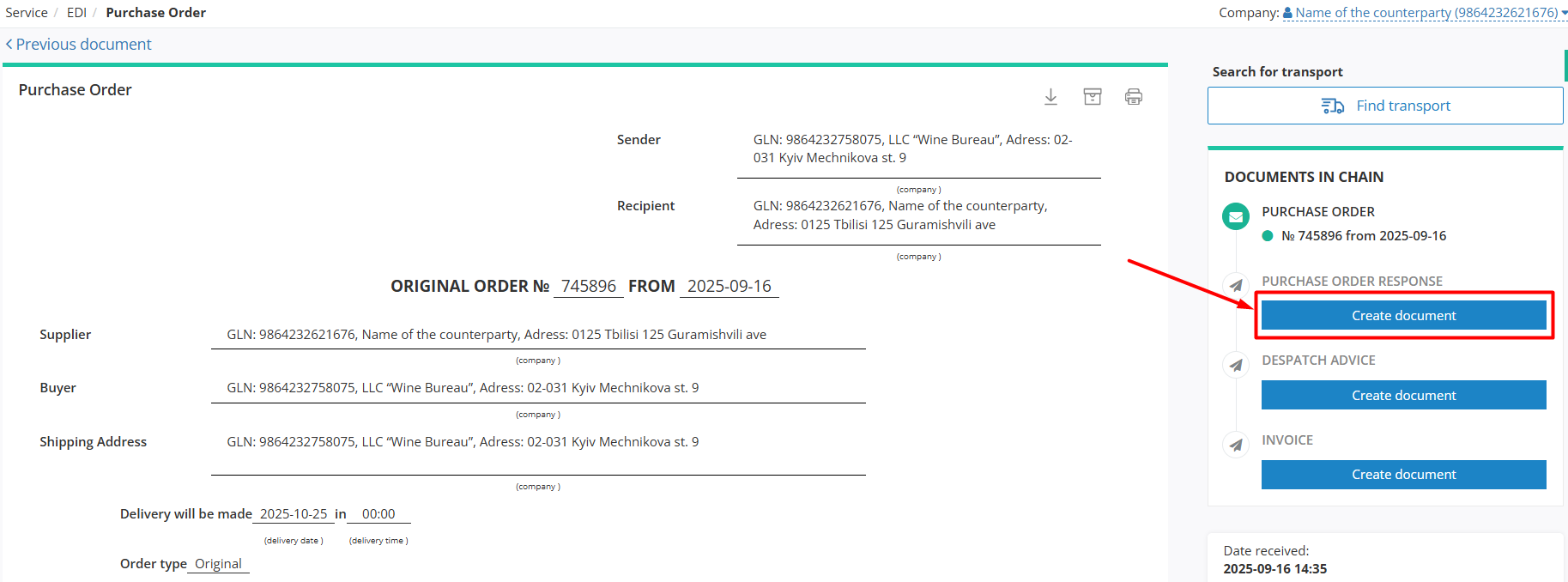
To create a “Purchase Order Response” (ORDRSP), click “Create document” button in the block document chain :
After that “Purchase Order Response” (ORDRSP) form will be opened:
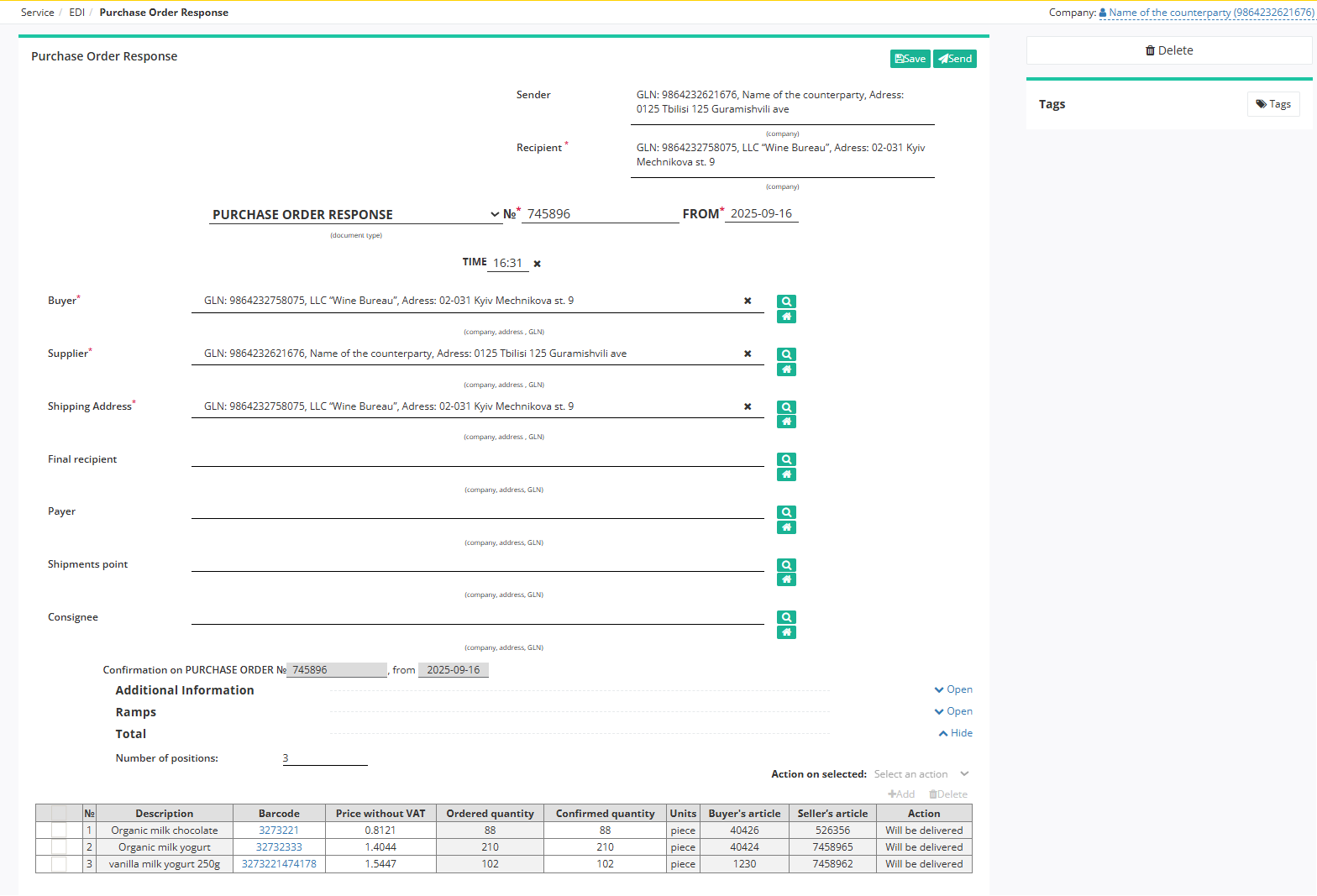
The following fields of “Purchase Order Response” form are filled in automatically from the related “Purchase Order” 1:
Sender / Recipient data (cannot be edited).
Number, Date, Time of the document (can be edited if necessary).
Buyer, Supplier, Shipping Address data.
Order currency (UAH / EUR / USD).
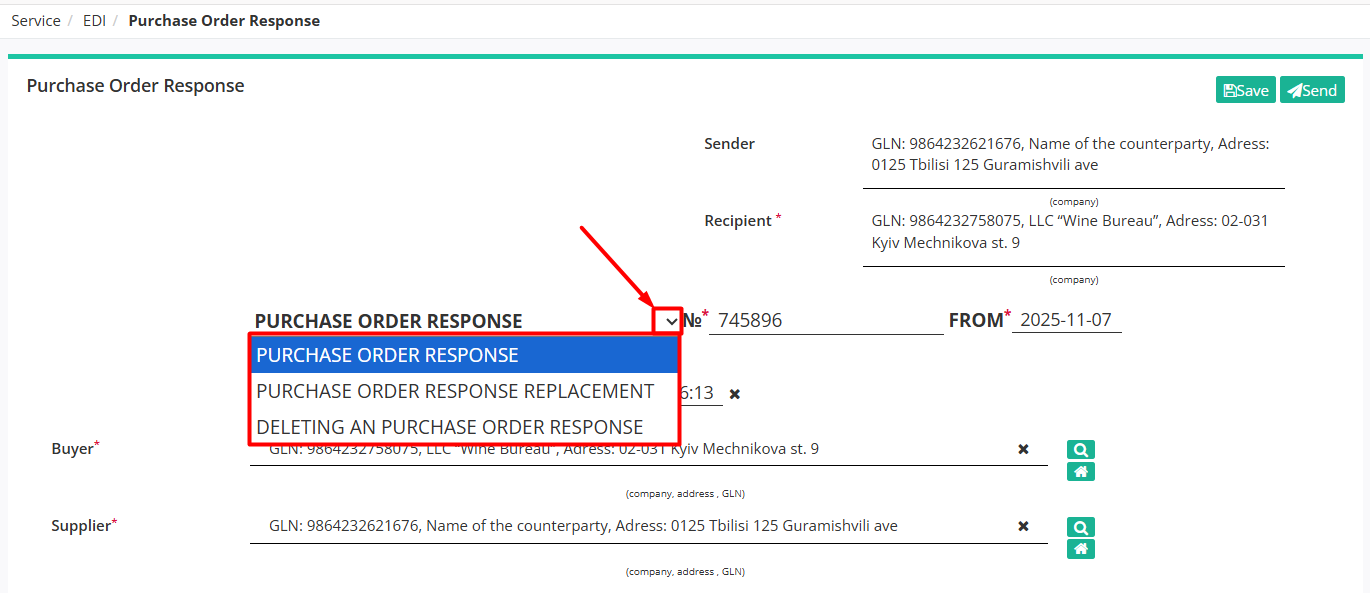
Document subtype is Purchase Order Response by default (can be changed if nessesary 2):
It is possible to add (optionally) information about Final recipient, Payer, Shipments point, Consignee.
The Additional Information and Ramps blocks are optional and collapsed by default. Block Total is calculated automatically after filling table positions in.
The item table displays basic information on the ordered goods items. Items are taken from “Purchase Order” and have “Will be delivered” action by default. By default, Ordered quantity is equal to Confirmed quantity for each item. It is possible to adjust the value of Confirmed quantity of the product directly in the table (with adjustments at the same time the item automatically will receive Quantity change action):

The alternative way to change the item data is using the advanced form “Position info” after clicking the item barcode:
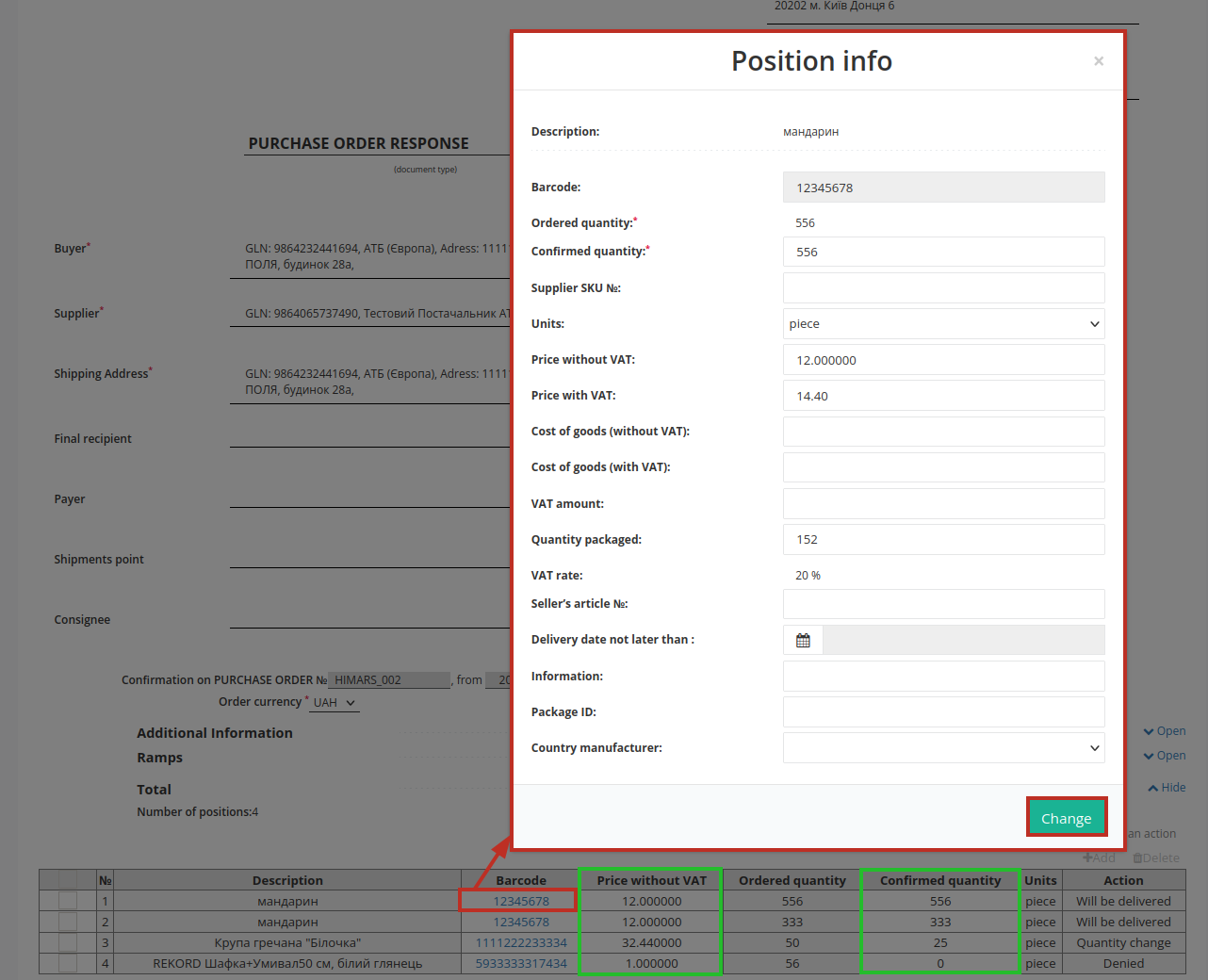
Multiple choice is also available in the item table: mark with a checker several items to change the delivery status to Will be delivered (Confirmed quantity = Ordered quantity) or Denied (Confirmed quantity =0) at once and use the “Actions on selected” button:

If there is no delivery for some of the items, mark them with a check mark and “Delete”. It is also possible to “+Add” new product positions, but these actions should be coordinated with the Wine Bureau.

Before confirming the “Purchase Order”, please make sure all updates are discussed with Wine Bureau!
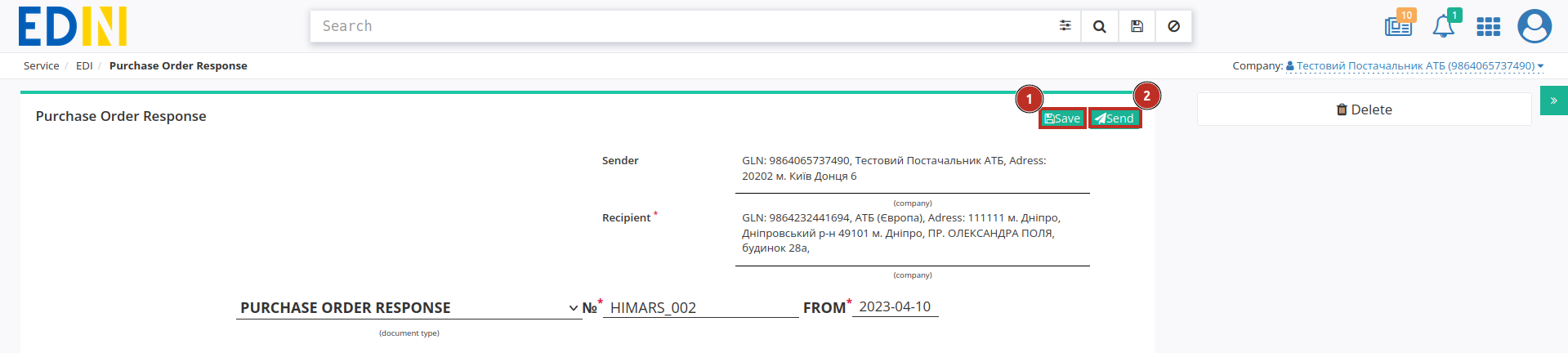
After entering all the data in the document, click the button “Save” (1), then “Send” (2):
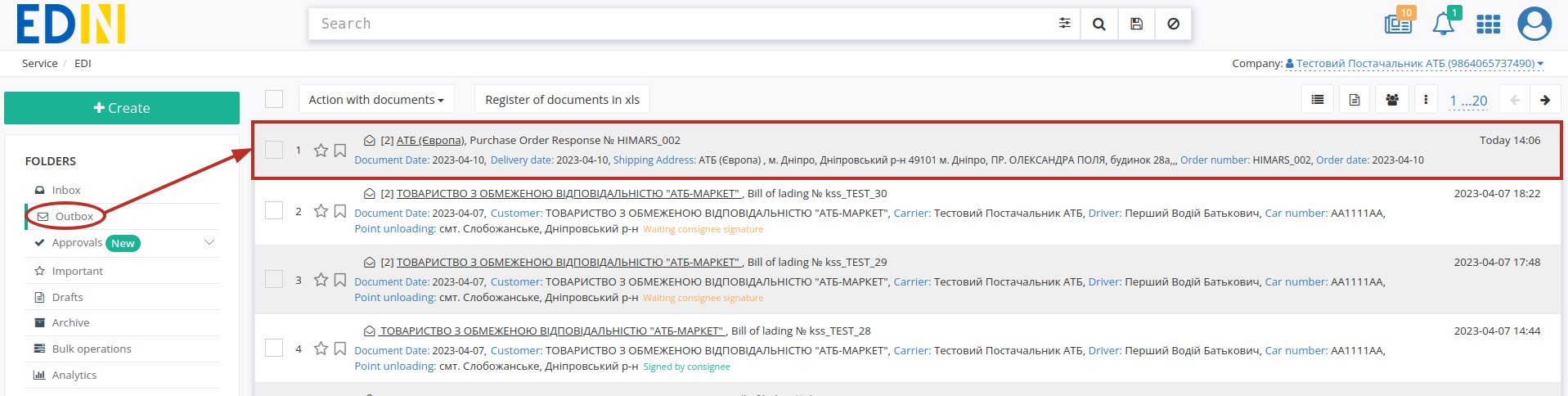
The sent document will be automatically placed into the “Outbox” folder and will be shown in the document chain documents together with “Purchase Order”:
Wine Bureau will receive an email notification about incoming “Purchase Order Response” (ORDRSP).
3 Formation of “Despatch Advice” (DESADV)
The formation of the “Despatch Advice” (DESADV) document on the EDI Network platform can be carried out on the basis of “Purchase Order” (ORDER) as well as on the basis of “Purchase Order Response” (ORDRSP).
Let’s consider the formation of the “Despatch Advice” (DESADV) document on the basis of “Purchase Order Response” (ORDRSP).
To do that, you need to select “Purchase Order Response” (ORDRSP) (for which you need to make a shipment) in the “Outbox” folder (for convenience you can use search):
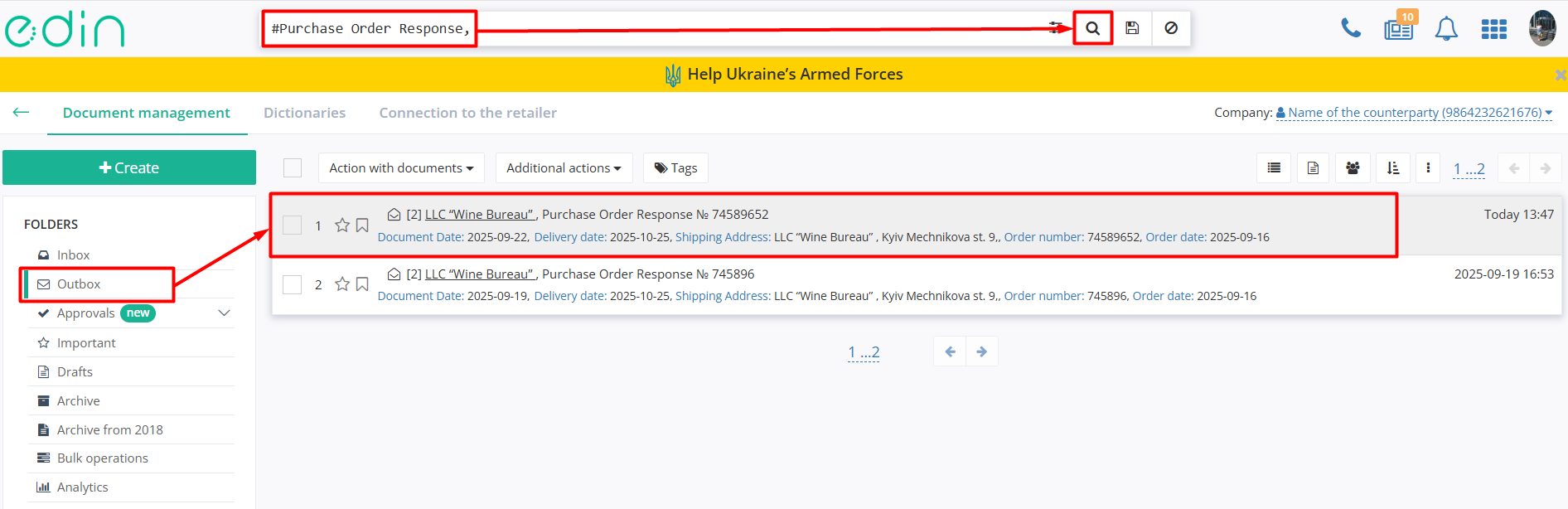
Click on the sent “Purchase Order Response” (ORDRSP) to open it. To create a “Despatch Advice” (DESADV) for the Wine Bureau, click on the “Create document” button in the document chain block:
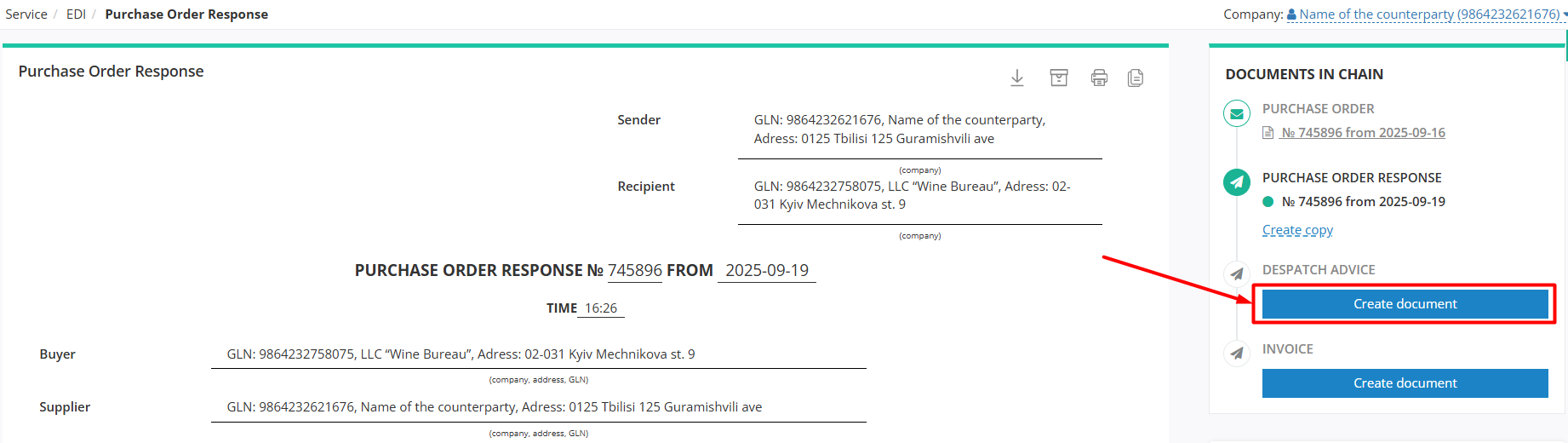
“Despatch Advice” (DESADV) form will be opened:
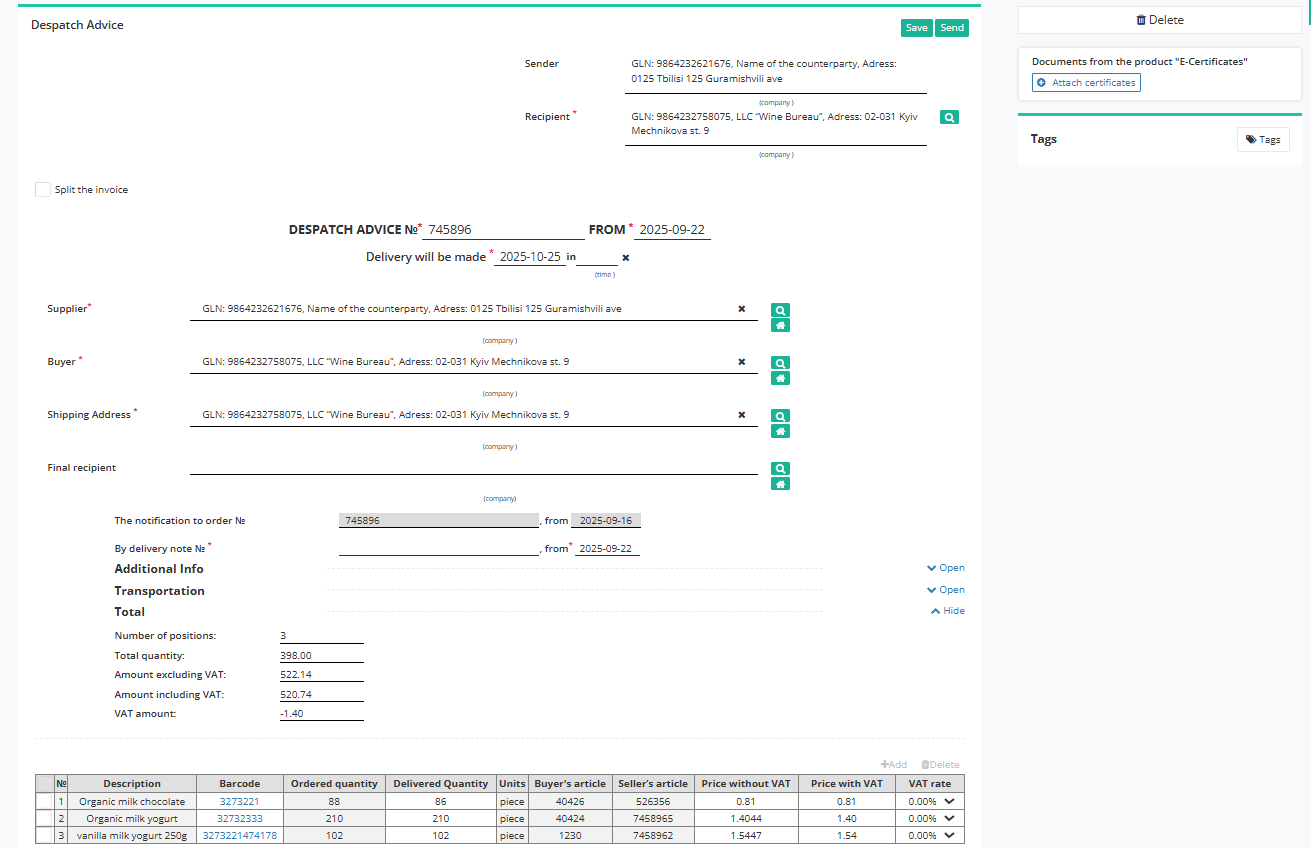
In “Despatch Advice” (DESADV) form the following fields are filled automatically in from the related basic document 1:
Sender data (cannot be edited).
Recipient data (can be edited using the “Search counterparty” button (
 ). For more details see here).
Document number matches the base document number.
Date, Time of the document (editable if necessary).
Supplier, Buyer, Shipment Address data.
It is possible to add (optionally) information about the Final Recipient.
Additional information and Transportation blocks are optional and “collapsed” by default. The Total block is calculated automatically after filling in the table positions.
Please make any changes in the positions only after coordination with Wine Bureau!
In the table positions you can edit the “Delivered Quantity” directly in the table or change the item data in the advanced form “Position info” after clicking on the barcode of the item:

It is important to fill the “Expiration date” field in the advanced form “Position info” for each position (see the screen above).
If there is no delivery for some of the items, they should be marked with a check mark and “Delete”. It is also possible to “+Add” new product positions, but these actions should be coordinated with the Wine Bureau.

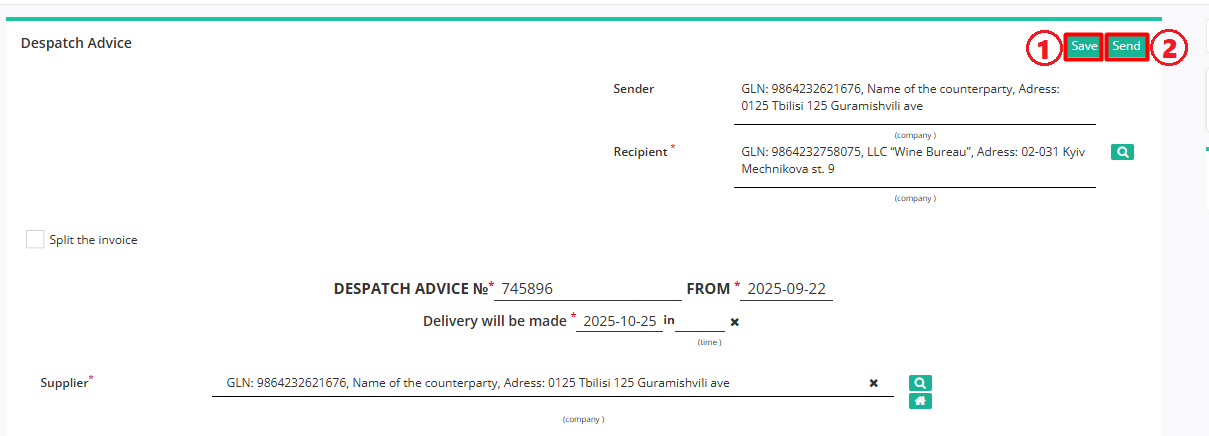
After entering all the data in the document, click the button “Save” (1), then “Send” (2):
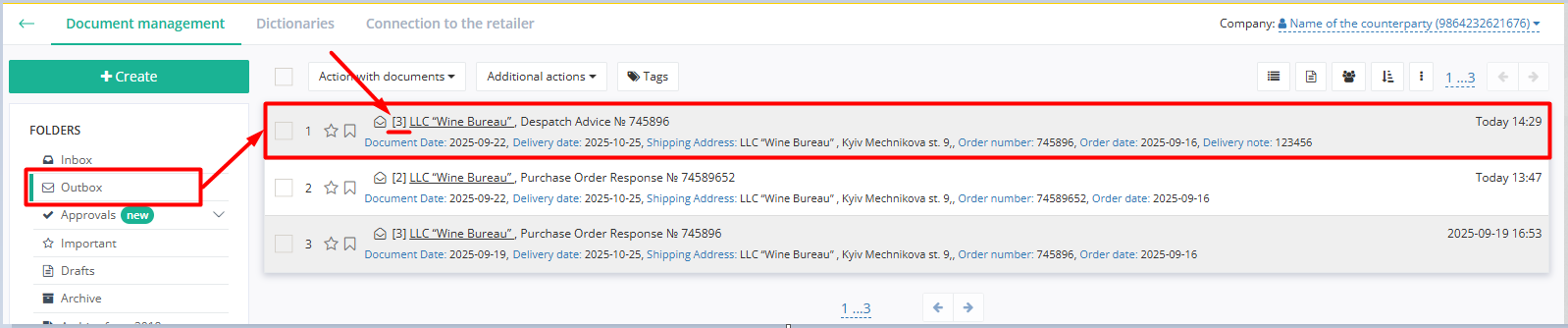
The sent document will be automatically placed into the “Outbox” folder and will be shown in the document chain documents together with “Purchase Order” and “Purchase Order Response” (the number in brackets indicates an amount of documents in the chain):
4 Formation of “Invoice” (INVOICE)
The “Invoice” document (INVOICE) on the EDI Network platform can be created based on one of the following documents: “Purchase Order” (ORDER), “Purchase Order Response” (ORDRSP).
Let’s consider the formation of the document “Invoice” (INVOICE) based on “Purchase Order Response” (ORDRSP) because that flow is preferable for using.
To do that, open the “Outbox” folder and find the “Purchase Order Response” for which you need to make a shipment (for convenience you can use search):
Click on the sent “Purchase Order Response” to open it. To create an “Invoice” (INVOICE) for the Wine Bureau, click on the “Create document” button in the document chain block:
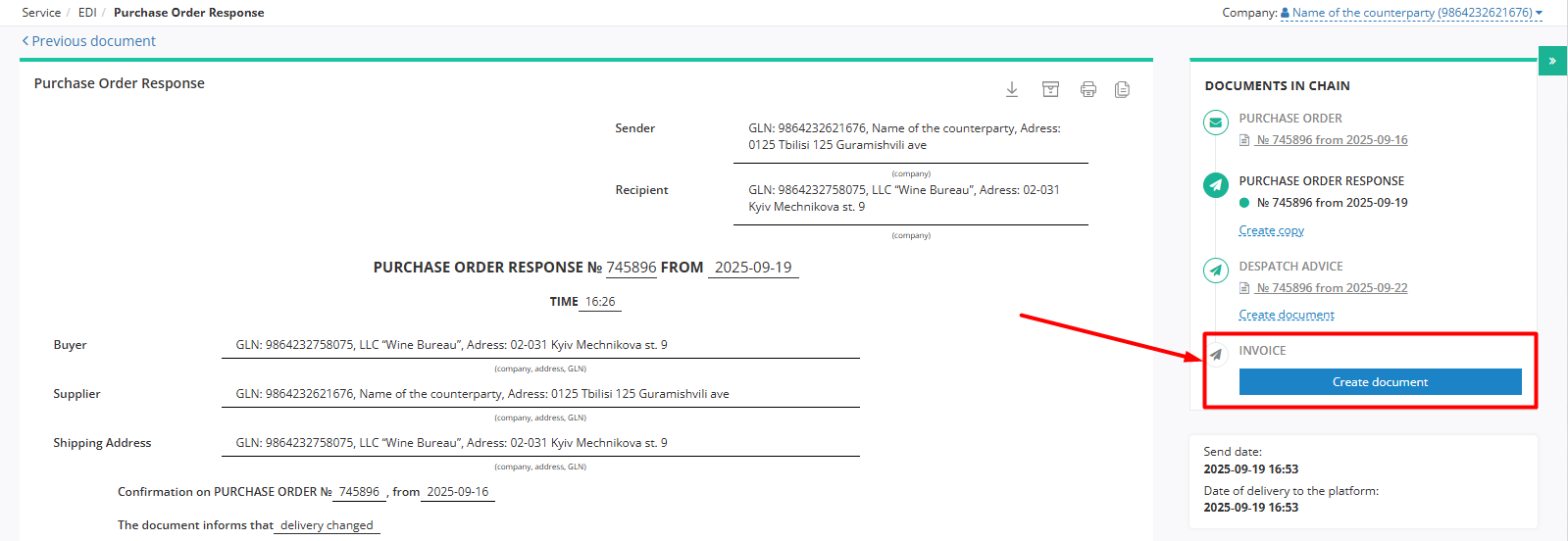
“Invoice” (INVOICE) form will be opened:
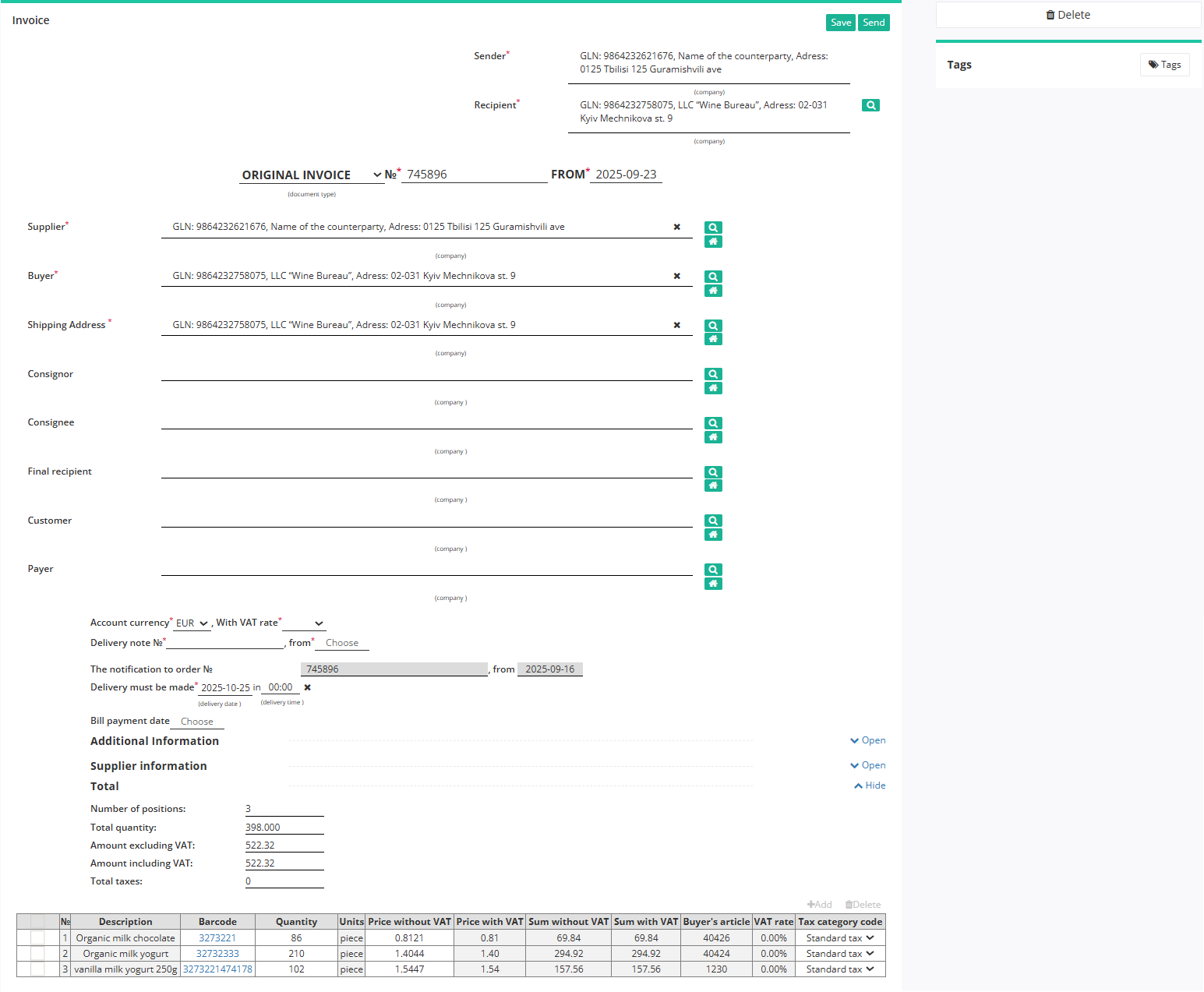
In the opened “Invoice” (INVOICE) form the following fields are filled in automatically from the related basic document 1:
Sender data (cannot be edited)
Recipient data (can be edited using the “Search counterparty” button (
). For more details see here)Document number matches the basic document number
Date of the document (editable if necessary)
Supplier, Buyer, Shipment Address data
Account currency and With VAT rate values.
Consignor, Consignee, Final recipient, Customer, Payer fields can be filled in optionally.
In addition, it is important to specify Delivery note № / from - number and date of the original document - must completely match the number/date of the original paper waybill! It is also important to choose a delivery date (Delivery must be made field):

Additional information and Supplier information blocks are optional and collapsed by default. The Total block is calculated automatically after filling in the table positions.
Please make any changes in the positions only after coordination with Wine Bureau!
In the table positions you can edit the “Quantity” directly in the table or change the item data in the advanced form “Position info” after clicking on the item barcode:
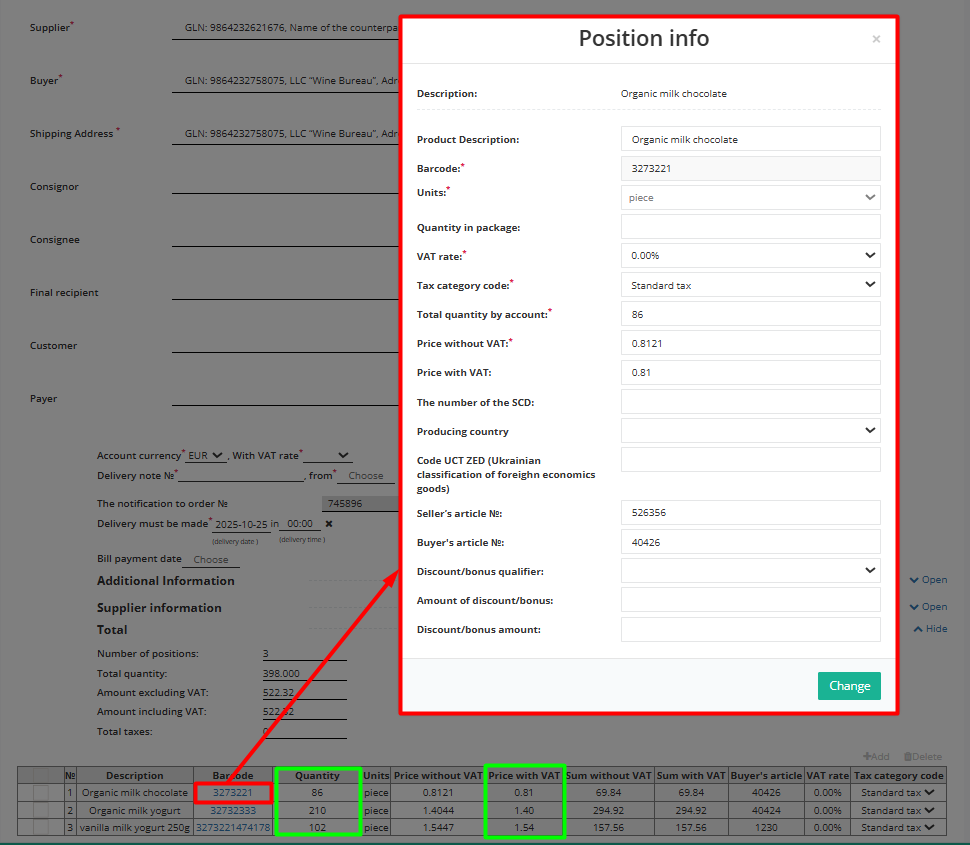
If there is no delivery for some items, mark them with a check mark and “Delete”. It is also possible to “+Add” new product positions, but these actions should be coordinated with the Wine Bureau.

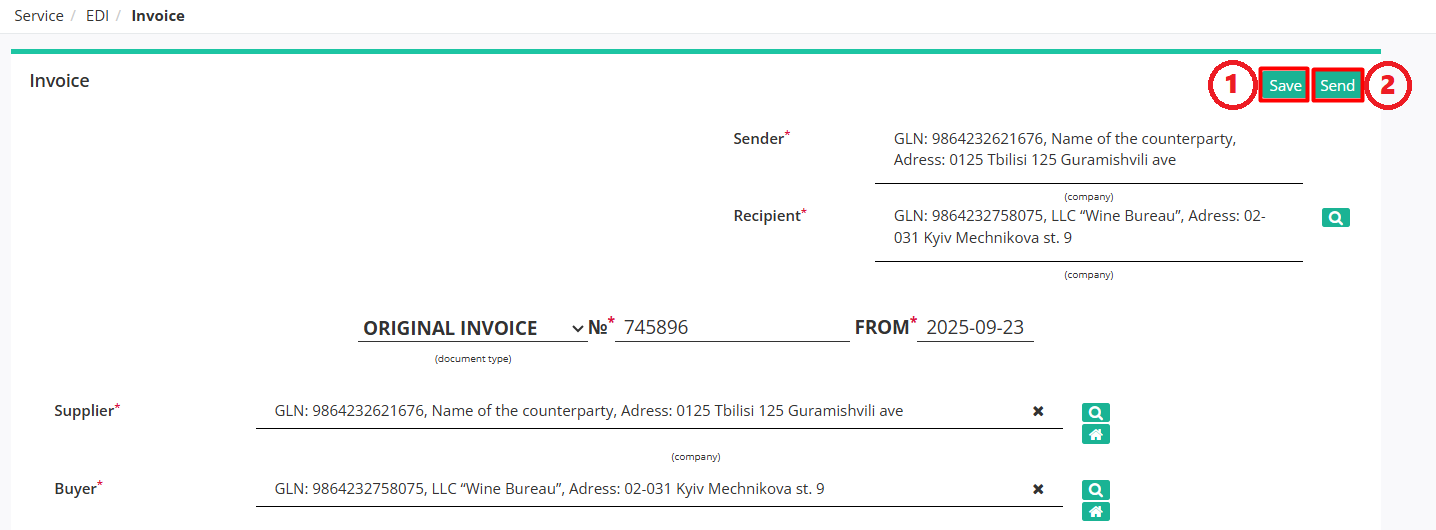
After entering all the data in the document, click the button “Save” (1), then “Send” (2):
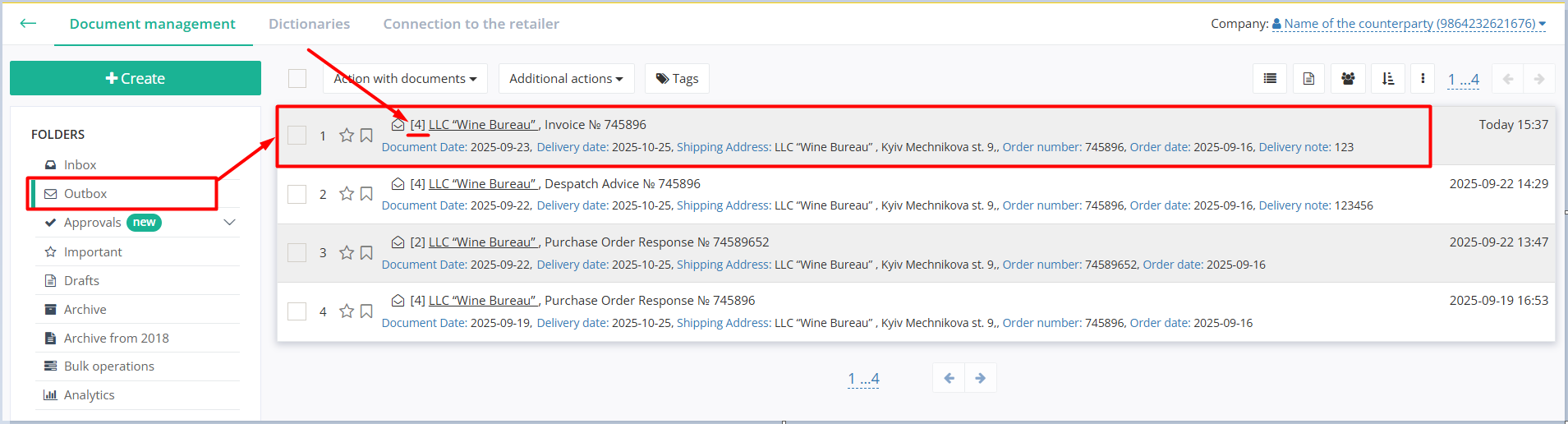
The sent document will be placed automatically into the “Outbox” folder and will be shown in the document chain documents together with other documents (the number in brackets indicates the amount of documents in the chain):
Search Counterparty in a document
With “Search counterparty” () button or “Point yourself” ( ) button it is possible to specify or change the data of counterparties. When using “Search counterparty” (), enter the company name, GLN or TIN in the window that appears:

- 1
Mandatory fields are marked with a red asterisk *
- 2
In case you need to make changes in the sent “Purchase Order Response”, create one more “Purchase Order Response” in the same way, choose the appropriate document subtype (Purchase Order Response Replacement or Deleting a Purchase Order Response), provide required changes, save and send the document.
Contacts
Service support service: support@edin.ua